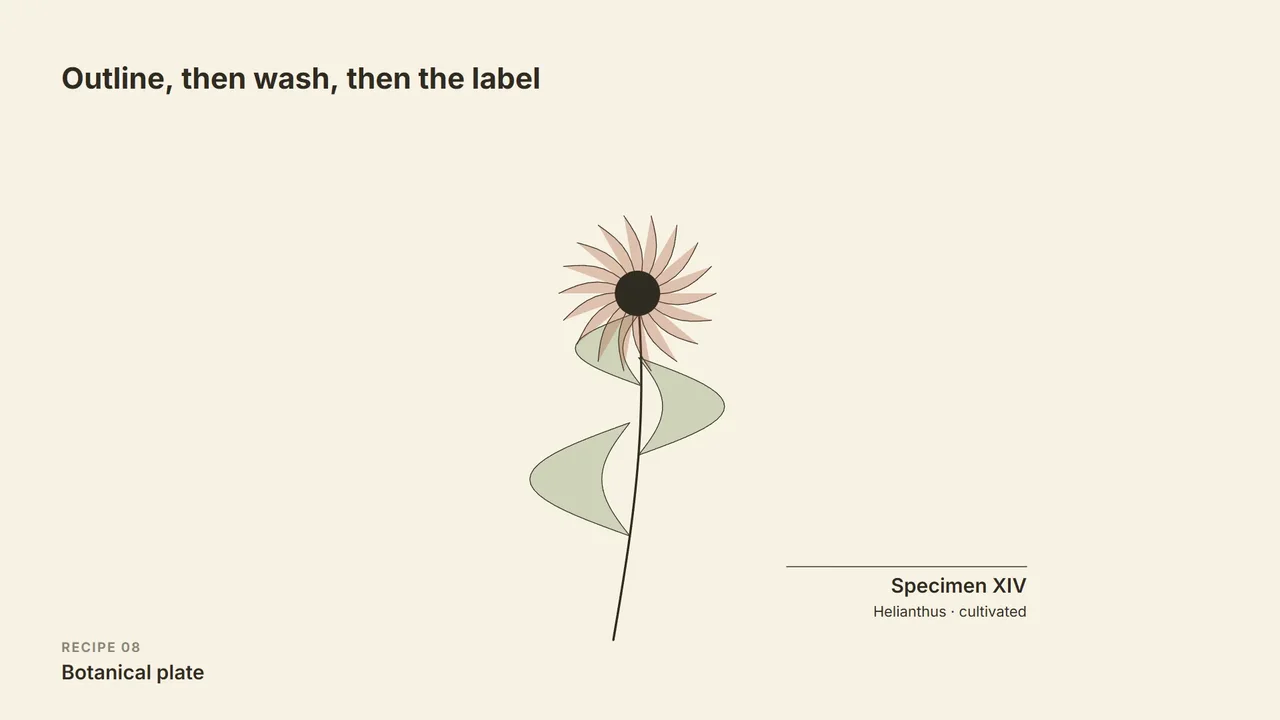
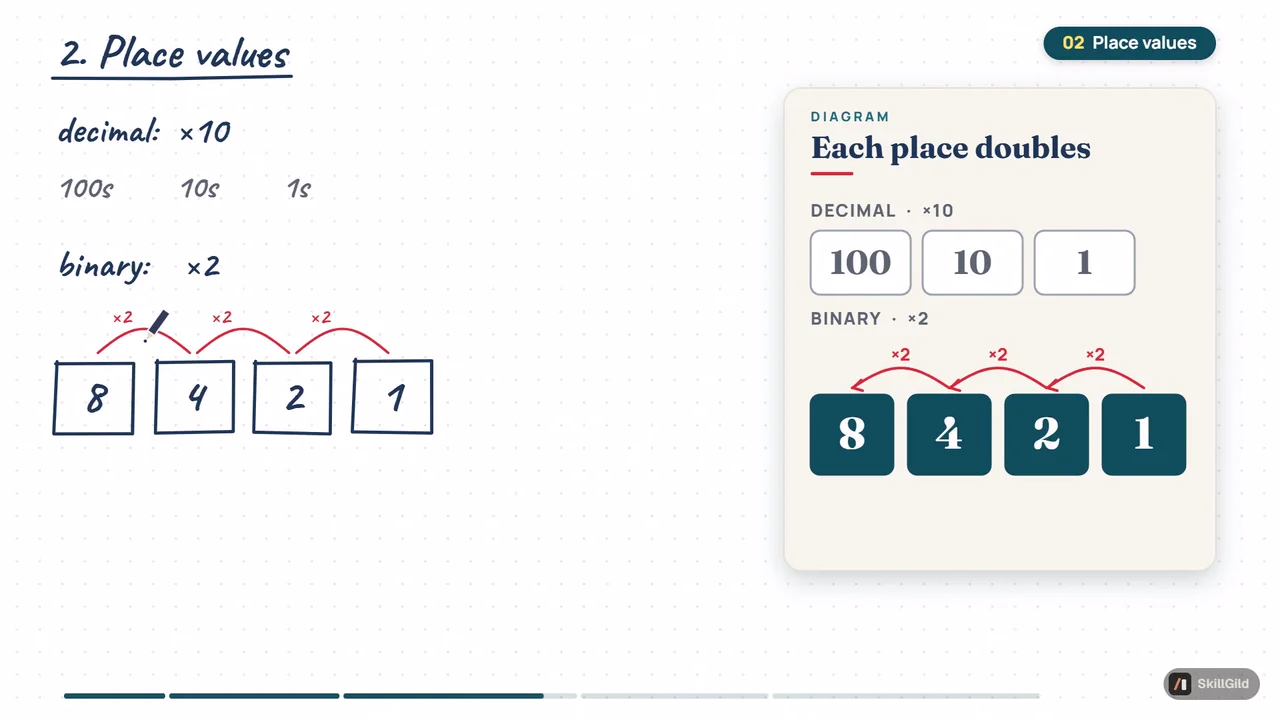
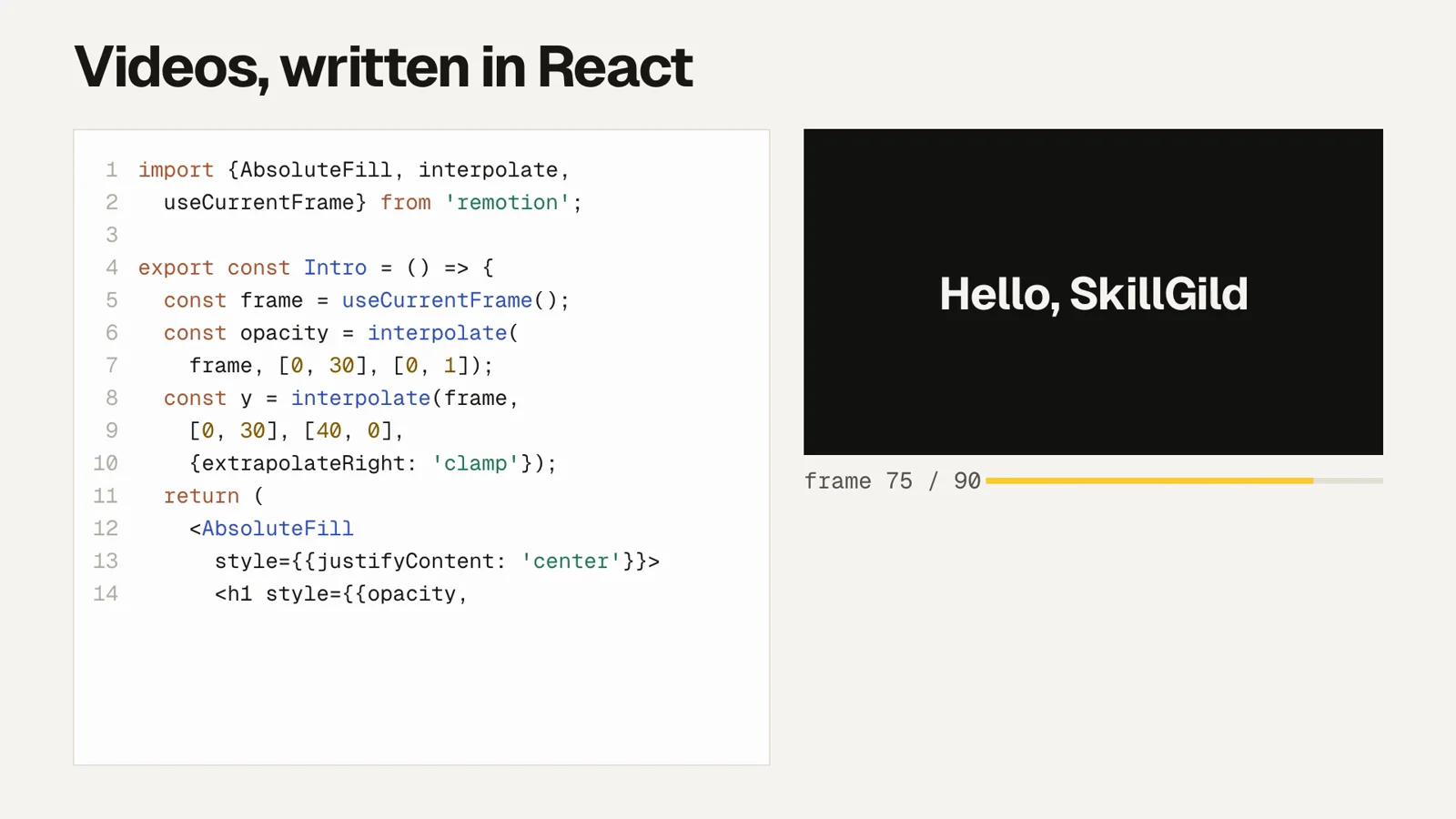
Turn the project you just built into a short, shareable launch video with one command. Your agent reads the project code, so no live URL or screenshots are needed.
25 free runs a month
Runs in your agent, private tools on SkillGild
v1.1.0
SkillGild
$ skillgild install brag
Works with
Claude Code
Codex
Cursor
Gemini CLI
Antigravity
and any MCP client
Based on brag by Shunit Haviv Hakimi (MIT)
Gallery
What you get
A short product launch video of the project you built, with music and motion: an AI launch video maker that runs in your coding agent
Share copy to post alongside the video
The plan and composition brief, so you can change it and render again
Requirements
Node.js 22 or later
FFmpeg on your PATH
Install the Brag skill
Choose your agent and run one command. SkillGild signs you in when needed and connects the skill for you.
On first use, approve the sign-in request in your browser. SkillGild connects Claude Code automatically. Restart or reload your agent, then ask it to use this skill.
Developer detailsAPI examples, server tools and input schemas
How it runs
Your agent starts a session. SkillGild checks your access and allowance, counts one run, and sends the skill's instructions for this task.
Your agent does the work with its own model and tools, in your project. SkillGild makes no AI model call.
Private steps run on SkillGild. Your agent calls the server tools below and gets their results. The tool code never leaves SkillGild, and tool input is not stored.
Use it from code
Start a session, call its tools, then end it. Create an API key under Account and pass it as a bearer token.
Terminal
# Prints the session ID, its tools and the instructions for your agent
skillgild session brag
skillgild call <session-id> validate_timeline --input '{"duration_seconds":10,"fps":30,"scenes":[{"id":"intro","start_seconds":0,"end_seconds":5},{"id":"outro","start_seconds":5,"end_seconds":10}]}'
skillgild end <session-id>
Server tools
Each call uses one of the session's tool calls.
validate_timelineValidate scene timing
Checks supplied scene start/end times against duration and frame rate. Reports gaps, overlaps and invalid ranges; does not render or judge visual quality.
Brag turns the project in your coding agent's workspace into a short launch video. It reads the code to understand what you built, so you can start before you have a public URL or screenshots. Use it when you have a working product interaction to explain and want a video to share alongside your launch.
Name the audience, the product interaction to show and the action a viewer should take. Give the agent real product facts and point it at existing brand assets. For example:
text
Use Brag to make a short launch video for this project.
Audience: freelance designers managing client work.
Show: creating a project and sharing it with a client.
Use the existing logo, colors and interface copy.
Do not invent features, customer quotes or usage numbers.
End with an invitation to try the product.
Follow the installation steps above and open your coding agent in the project folder. The listed rendering requirements are Node.js 22 or later and FFmpeg on your PATH. If a render fails, ask the agent to check the missing dependency and retry the render before rebuilding the composition. Your agent's model usage is separate from SkillGild access.
Check the first scene without reading the accompanying post: can you tell what the product does? Then inspect small text, feature claims and the final invitation. Ask for a specific revision, such as keeping a product interaction visible longer, instead of restarting with a different concept.
Install or update the SkillGild CLI, then run skillgild install brag --agent claude-code. It signs you in when needed and registers the MCP connection automatically. Use --agent codex, cursor or gemini-cli for other clients. It installs as a skill, so there is no separate Claude Code plugin to add, and the no-code quickstart can have your agent do these steps for you.
Does Brag need a live URL or screenshots?
No. Your agent reads the project's code, so Brag works before the project is deployed and without screenshots.
Where does Brag render the video?
On your own machine, which is why it needs Node.js 22 or later and FFmpeg. SkillGild supplies the skill's instructions and tools; the rendering and files stay in your project.
Is the Brag skill free?
Yes. Free skills include 25 runs a month, reset on the 1st. Your agent's own model usage is billed by your AI provider, not SkillGild.
Related guides
Setup steps and worked examples for this kind of skill.