Cursor MCP setup for agent skills
Configure Cursor's mcp.json for SkillGild, sign in through the CLI, install a skill wrapper and troubleshoot the MCP connection.
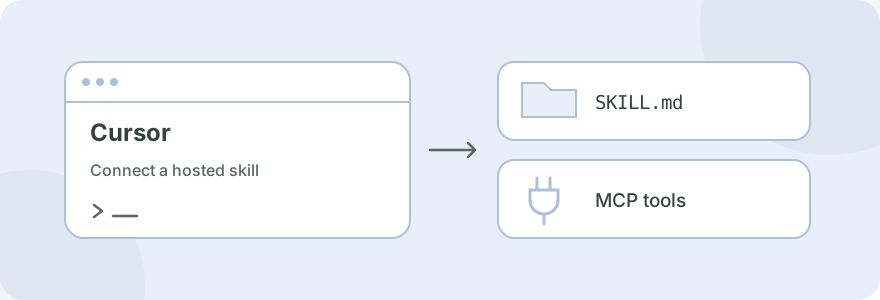
To connect SkillGild to Cursor, install and sign in to the SkillGild CLI, then register its absolute executable path in Cursor's mcp.json as a local stdio server. An optional skill wrapper in ~/.cursor/skills/ helps the agent recognize when to use a hosted workflow.
#Choose a project or personal connection
Cursor supports .cursor/mcp.json inside a project and ~/.cursor/mcp.json for your personal setup. Project configuration takes precedence when the same server name appears in both. The official Cursor MCP guide explains configuration, tool approvals and logs.
Use personal configuration if you want the connection available across projects. Use project configuration when the team needs the same server definition. Each teammate still signs in on their own machine; the configuration below contains no account credential.
#Connect SkillGild to Cursor
#1. Install the CLI and approve your device
Follow Install the CLI. The current method uses Go 1.26 or later and the SkillGild source checkout. Then run:
skillgild login
skillgild status
Confirm the browser's device code. The CLI stores its credential in the operating system's credential store, which the MCP process uses.
#2. Find the executable path
On macOS or Linux:
command -v skillgildOn Windows, use where.exe skillgild. Use the resulting absolute path because an application launched outside the terminal may have a different PATH.
#3. Add the MCP configuration
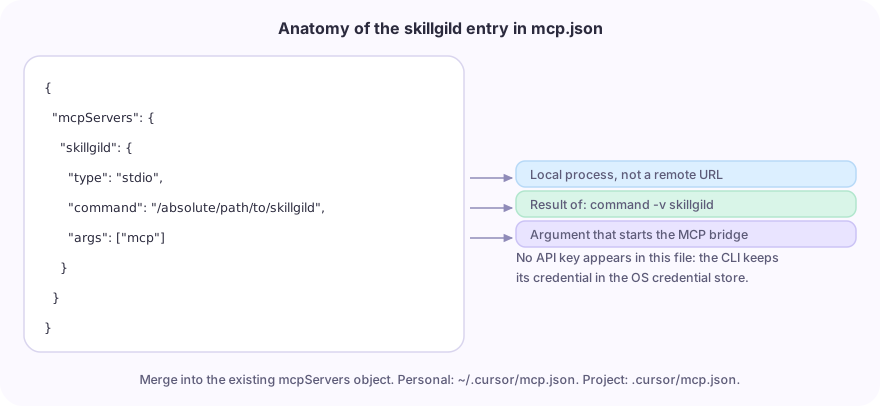
Open your chosen mcp.json. Merge the skillgild entry into its existing mcpServers object so other connections stay intact. Replace the placeholder command with your executable's absolute path:
{
  "mcpServers": {
    "skillgild": {
      "type": "stdio",
      "command": "/absolute/path/to/skillgild",
      "args": ["mcp"]
    }
  }
}
On Windows, use forward slashes or escaped backslashes in JSON paths. Save the file and restart Cursor. Inspect the connection in its MCP controls; the current interface exposes MCPs through Customize. Follow your configured tool approval policy when starting a workflow.
#4. Install an optional Cursor skill wrapper
skillgild install logo-design --agent cursorThe CLI writes ~/.cursor/skills/logo-design/SKILL.md. Cursor's skills documentation explains local skill discovery. The wrapper identifies the workflow and how to call it; it requires the MCP connection for hosted tools.
#5. Ask Agent to use a skill
Use the SkillGild Logo Design skill for a fictional cycling club called
North Loop. Start with three geometric concepts. Check one-color use
and small sizes, and show the proposed files before finalizing them.
For a hybrid skill, the agent starts a session, receives its instructions, calls the declared hosted tools where needed and closes the session. For a prompt skill, it calls skillgild_run_skill. Inspect the Logo Design listing for current inputs and access.
#If Cursor cannot connect to the MCP server
| Symptom | Check |
|---|---|
| Server executable cannot be found | Use the actual absolute path; test skillgild status in a terminal |
| Configuration is not recognized | Validate the JSON, its mcpServers object and the correct project/user file |
| The wrong server definition is used | Look for the same name in project and user configuration |
| Server appears but hosted calls fail | Check the CLI's account connection, then inspect the returned error |
| No tool is called for your task | Ask explicitly for the installed skill and review the available/enabled tools |
For server logs, open Cursor's Output panel and select MCP Logs. A local wrapper appearing in the skill list does not confirm that the server is connected. See SkillGild's agent error handling for access and quota failures.
These configuration details were checked against Cursor documentation and the SkillGild CLI. An authenticated task still depends on your account approval and local environment.
#Choose a workflow or another client
Browse hosted agent skills, compare skills and MCP, or follow the Claude Code and Codex CLI guides. The CLI skills overview connects these setup routes.