How to Add MCP Server to Cursor: A Pro Developer's Guide
Master adding MCP servers to Cursor. Learn to integrate SkillGild's hosted AI skills and local tools to extend your IDE's capabilities in minutes.

Integrate a Model Context Protocol (MCP) server into Cursor to transform the IDE from a predictive text engine into an autonomous agent. This setup allows Cursor to execute specialized tools, including binary reconstruction or live SVG generation, directly within its own inference loop. Before starting, install Cursor and prepare either a SkillGild account for hosted capabilities or the specific terminal command for your local server.
Standard autocomplete functionality in 2026 offers a productive baseline, yet it often lacks the project-specific logic required for complex tasks. By adding an MCP server, you expand the IDE's capabilities so it can access external data sources and specialized APIs outside the base model's training set. Use the following steps to configure these connections. This creates a workflow where the editor manipulates project assets through a unified protocol rather than just suggesting code.
Follow this process to configure both remote and local integrations. You will distinguish between using SkillGild’s managed infrastructure for instant capabilities and setting up project-specific stdio servers for internal data. Completing these steps populates the Cursor tool sidebar with verified active functions for use in the Composer or Chat interface.
Key takeaways
- Use the 'Model Context Protocol' tab in Cursor settings to bridge external tools with your AI agent.
- SkillGild hosted servers eliminate the need for local environment configuration and heavy dependency management.
- Verify server status in the Cursor sidebar to ensure the agent can access new functions and tools.
- Standardize team workflows by using SkillGild's hosted SKILL.md format instead of fragmented local scripts.
Try it on a real task: Academic Plotting is free for 25 runs a month.
#Table of contents
- The Model Context Protocol turns Cursor into a specialized agent
- Locate the MCP configuration panel in Cursor settings
- Connect SkillGild hosted skills for instant capability injection
- Configure local stdio servers for project-specific data
- Verify the connection through the Cursor tool sidebar
- Troubleshoot the common handshake and path errors
- Scale your workflow with the SkillGild SKILL.md format
- Frequently asked questions
- Where do I find the MCP settings in Cursor?
- How do I add a SkillGild hosted skill as an MCP server?
- Why is my MCP server not appearing in the Cursor chat?
- Can I use multiple MCP servers simultaneously in one Cursor project?
- What is the difference between a local stdio server and a remote MCP server?
- Selecting Your MCP Integration Strategy
#The Model Context Protocol turns Cursor into a specialized agent
Integrate a Model Context Protocol (MCP) server to transform Cursor from a predictive text tool into an active agent. Once configured, the IDE gains the ability to query databases, read documentation via APIs, and execute terminal commands through a standardized interface. This setup moves the workflow beyond basic autocomplete by giving the LLM direct, real-time access to the specific context of a project’s ecosystem.
Expand the capabilities of Cursor by connecting live skills that allow the model to reason about specific environments instead of relying solely on static training data. For technical details on how these capabilities are structured for agentic behavior, refer to Anthropic: Claude Skills and Agent Skills. This integration ensures that the model's suggestions are grounded in the actual state of the infrastructure rather than generic patterns.
To begin the integration, confirm you have a functional installation of Cursor and a specific MCP server to connect. This requires either a SkillGild account to access hosted server configurations or a valid local server command. You may use an npx or python execution string that the IDE can invoke. Before proceeding to the configuration settings, verify all environment variables or API keys required by the chosen server. Cursor needs these credentials to establish a handshake with the MCP host.
#Locate the MCP configuration panel in Cursor settings
Accessing the Model Context Protocol (MCP) interface requires navigating through the primary application preferences. Users must open the Cursor settings by clicking the gear icon in the top-right corner of the editor or by using the Cmd + Shift + J (macOS) or Ctrl + Shift + J (Windows/Linux) shortcut. Within the settings menu, the Features tab in the sidebar contains the specific entry for MCP. Selecting this option opens the centralized management hub where all external server integrations are configured, monitored, and toggled.
The MCP configuration panel serves as the bridge between the local IDE and external data sources or specialized tools. Upon first arrival, the list of configured servers appears empty, which is the expected baseline for a fresh installation. This interface is designed to handle multiple concurrent connections, allowing developers to extend the underlying model's knowledge base without modifying the core editor code. Each entry added here represents a persistent link to a server that the AI agent can query to perform actions like searching documentation, executing terminal commands, or interacting with third-party APIs.
Maintaining a clean configuration ensures that the AI assistant only draws from relevant tools, preventing context pollution during complex coding tasks. Professionals often review this section to verify connection statuses or to prune deprecated endpoints as their project requirements evolve. For those planning a long-term integration strategy, reviewing the Upcoming features provides insight into how these protocol standards are expected to mature. With the panel open and the interface understood, the environment is ready for the addition of specific server credentials and connection strings.
#Connect SkillGild hosted skills for instant capability injection
Adding a Model Context Protocol (MCP) server to Cursor often defaults to local "command" configurations, but the most efficient path for high-compute tasks involves the "Remote" server type. By using a SkillGild endpoint, developers bypass the need to manage local runtimes, node dependencies, or complex environment variables for every individual tool. This approach shifts the execution burden from the local machine to SkillGild’s optimized infrastructure, enabling the AI to perform complex operations such as SVG generation or binary reconstruction without slowing down the IDE’s primary functions.
To begin the connection, navigate to the Cursor Settings by selecting the gear icon in the top right or using the global shortcut. Within the Features tab, locate the MCP section and click the button to add a new server. In the configuration dialog, change the type from "command" to "Remote" (SSE). This selection tells Cursor to communicate over a persistent Server-Sent Events stream rather than attempting to execute a local binary or script on the host machine.
Enter the specific SkillGild skill URL provided in the account dashboard into the endpoint field. Because these skills are hosted, they remain active and accessible across different projects and machines without manual re-installation or port forwarding. SkillGild manages the backend execution environment. This ensures that when the AI requests a specialized output, such as a rendered architectural diagram or a reconstructed data artifact, the processing occurs on dedicated hardware rather than competing for local CPU cycles.
Developers who need more technical detail regarding specific endpoint configurations can find detailed documentation at Cursor MCP Setup: Connect Hosted Agent Skills. This resource covers the authentication headers and specific skill IDs required for custom enterprise deployments. While SkillGild offers various tiers for skill access, users should verify current plan limits and service availability on the official SkillGild pricing page, as these parameters are subject to update by the vendor.
The primary distinction between local and hosted setups lies in maintenance and capability. Local servers are ideal for accessing private file systems, but hosted skills provide advanced computational features that are difficult to replicate in a standard development environment. The following table highlights the operational differences between these two integration methods to help determine which is appropriate for a specific 2026 development workflow.
| Feature | Local MCP Server | SkillGild Hosted Skill |
|---|---|---|
| Hosting Location | User's local machine or project container | SkillGild cloud infrastructure |
| Configuration Type | Command (stdio) | Remote (SSE) |
| Compute Intensity | Limited by local hardware resources | Offloaded to scalable remote servers |
| Setup Complexity | Requires local runtime and dependency management | Requires only a URL and authentication key |
| Maintenance | Manual updates for each local installation | Automatic updates managed by the provider |
| Primary Use Case | Accessing local files and private repositories | Heavy data processing, SVG, and binary tasks |
#Configure local stdio servers for project-specific data
Local stdio (standard input/output) servers allow Cursor to interact directly with the local file system and development environment. Although the archived cursor mcp servers repository was closed by the owner on March 19, 2026, the Model Context Protocol remains the industry standard for local tool integration. These servers run as separate processes on the host machine, enabling the AI to execute commands, read files, or query databases that are not exposed to the public internet.
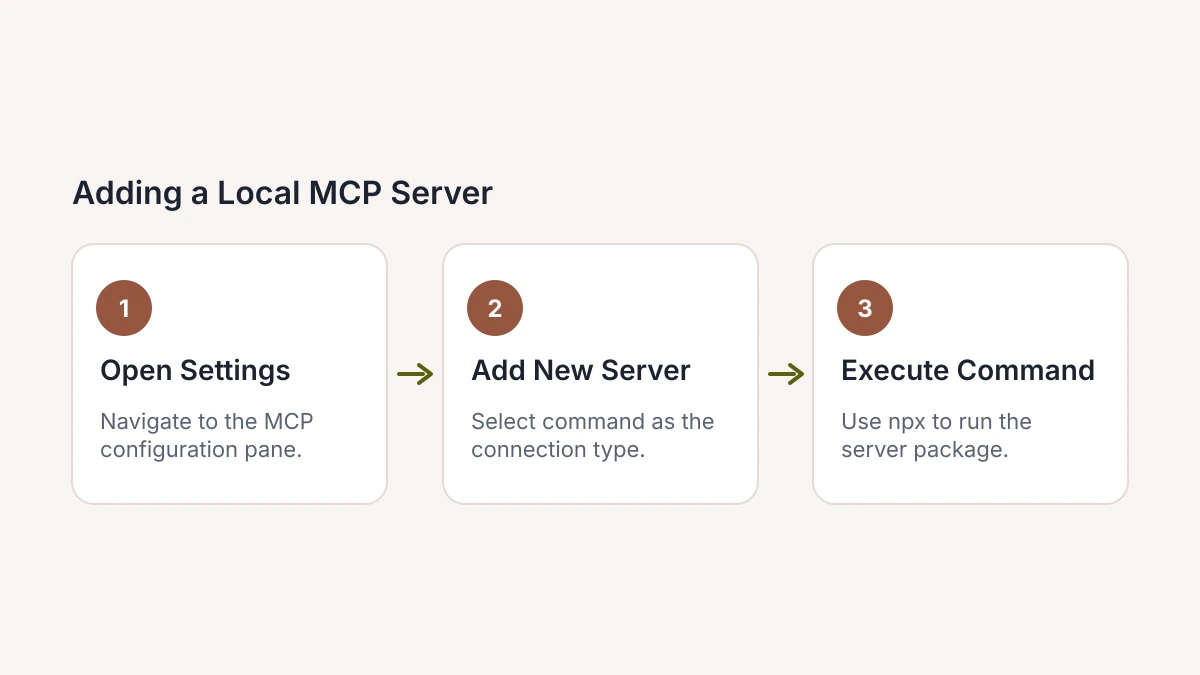
To add a local server using Node.js, open the Cursor settings and navigate to the MCP configuration pane. Click the button to add a new server and select "command" as the connection type. In the command field, use npx to execute the server package directly. For example, to provide the AI with access to a local filesystem tool, the command would be npx -y @modelcontextprotocol/server-filesystem /path/to/project. This approach is preferred for rapid deployment as it fetches the necessary packages at runtime without requiring manual global installations.
Python-based servers are integrated by pointing the command field to the local Python interpreter. Developers should use the absolute path to a virtual environment's executable to ensure all dependencies are correctly resolved. In the arguments field, specify the script or module to be executed, such as python3 -m mcp_server_custom. This configuration is essential for specialized workflows, particularly when choosing a Jira integration in 2026 where local synchronization of issue metadata is required for project tracking.
After defining the command and arguments, assign a descriptive name to the server to facilitate easy identification in the Cursor interface. The IDE will attempt to initialize the server immediately upon saving the configuration. If the server requires specific environment variables, such as local database credentials or file paths, these must be added within the Cursor configuration modal. This ensures the environment is properly inherited by the child process, allowing the MCP server to maintain a persistent connection through the standard input and output streams.
#Verify the connection through the Cursor tool sidebar
Check the connection status in Cursor Settings under the MCP section after saving your configuration. Look for a green indicator next to the server name to confirm a successful connection. If the indicator stays gray or turns red, the server did not start or the runtime environment is missing. This status light proves that Cursor has started the child process and can communicate through the Model Context Protocol.
Click the active server entry to see the tools exported to the IDE. A working server displays functions like generate_logo, fetch_github_issue, or analyze_binary. Check that these names and descriptions match what you expect the server to do. If the status is green but the list is empty, the server might use an old MCP SDK or the script is not exporting tool definitions correctly.
Test the tools in the Cursor Chat or Composer interface. The AI recognizes these tools when you write prompts for external data or specific actions. In the 2026 version of Cursor, find these tools in the context menu or by typing the "@" symbol to call functions. If the server functions appear next to native Cursor tools, the integration is active and the LLM can use them in your workflow.
#Troubleshoot the common handshake and path errors
Handshake failures typically stem from misconfigured environment variables or malformed command strings. When adding an MCP server to Cursor, the IDE must execute the server binary or script with the exact permissions and context required by the underlying runtime. If a server requires an API key or a specific database URL to initialize, these must be defined within the Cursor configuration interface or the local shell environment. A single missing character in a path string or an incorrect flag in the startup command prevents the initial exchange of capabilities, leaving the server in a "disconnected" state.
Missing dependencies on the local machine represent the second most frequent cause of initialization errors. Because MCP servers often run as Node.js or Python processes, the host system must have the corresponding runtime and all required packages installed globally or accessible via the specified path. If a server relies on a specific version of a language runtime that was updated or moved, the handshake will fail silently or return a "command not found" error in the logs. Developers should verify that the server script runs independently in a standard terminal before attempting to link it to Cursor.
Remote endpoints, particularly those hosted via SkillGild, often encounter firewall or proxy blocks that prevent the Model Context Protocol from establishing a secure WebSocket or transport layer connection. If the network environment restricts outbound traffic to unknown ports, Cursor cannot reach the SkillGild gateway to pull the server schema. Users must ensure that the local firewall allows the Cursor binary to communicate with external endpoints and that any corporate VPNs are not stripping the headers required for the MCP handshake. For detailed protocol specifications and port requirements, refer to the official Documentation.
When the "Add" button fails to initialize a server, a systematic checklist resolves most issues. First, confirm the absolute path to the executable; relative paths often resolve incorrectly within the IDE context. Second, check the Cursor logs for "stderr" output, which usually contains the specific stack trace from the MCP server's boot sequence. Third, validate that the server's JSON-RPC implementation is compliant by testing it with a generic MCP inspector tool. Finally, ensure that the server is not already bound to a port by a zombie process from a previous failed attempt, as this prevents the new instance from claiming the necessary resources.
#Scale your workflow with the SkillGild SKILL.md format
Moving from individual MCP configurations to a team-wide environment requires shifting from local configuration edits to a centralized capability model. In a professional setting, manual configuration on every developer’s machine creates drift and significant maintenance overhead. By adopting the SkillGild SKILL.md format, organizations can define their toolsets once and distribute them across the entire engineering department. This approach ensures that every member of the team has access to the same custom functions and server integrations without needing to debug local environment paths or individual server binaries on every workstation.
SkillGild provides a library of 73 hosted skills categorized into 15 distinct functional areas, ranging from specialized DevOps workflows to advanced data processing tools. Because these skills are hosted, they eliminate the need for local server management or complex installation scripts. Teams can browse the catalog to find pre-configured MCP-compatible tools that align with their specific tech stack. It is important to verify the specific subscription tiers and skill availability on the SkillGild website, as service offerings and plan details are subject to change; check the vendor's current page for the latest terms.
The SKILL.md format acts as a manifest that Cursor can interpret to instantly provision these hosted capabilities. Instead of each developer manually adding MCP servers through the settings pane, the team lead maintains a standardized skill profile. When a developer pulls the latest repository or joins a project, the SKILL.md file provides the necessary context for Cursor to interface with the SkillGild infrastructure. This results in a "zero-config" experience where the AI assistant’s capabilities are consistent across the group, allowing the team to focus on code rather than infrastructure maintenance.
#Frequently asked questions
#Where do I find the MCP settings in Cursor?
Open Cursor Settings using the shortcut Cmd + Shift + J (or Ctrl + Shift + J on Windows), navigate to the "Models" tab, and scroll down to the MCP section. This interface serves as the primary hub for managing all protocol connections and server configurations. In the current 2026 builds, you can also toggle the "Features" menu to view active server status.
#How do I add a SkillGild hosted skill as an MCP server?
Copy the SkillGild endpoint URL from your dashboard and paste it into the "Add New MCP Server" dialog within Cursor's settings. You must select the "SSE" (Server-Sent Events) transport type to establish a stable connection with hosted infrastructure. This method allows you to inject specialized capabilities into your IDE without managing local dependencies or complex environment variables.
#Why is my MCP server not appearing in the Cursor chat?
Check the MCP status indicator in the Cursor sidebar to ensure the connection is "Active" rather than "Errored" or "Disconnected." If the status is green but tools are missing, verify that your configuration uses the correct absolute path for the server executable. Handshake failures often stem from mismatched protocol versions or restricted network permissions on your local machine.
#Can I use multiple MCP servers simultaneously in one Cursor project?
Yes, Cursor supports multiple concurrent MCP server connections, allowing you to combine different specialized tools in a single session. You can mix local stdio servers for private codebase analysis with remote SkillGild skills for external API integrations. The AI agent will automatically select the most relevant tool from your active list based on the context of your prompt.
#What is the difference between a local stdio server and a remote MCP server?
Local stdio servers run as child processes on your machine using standard input/output, whereas remote servers communicate over HTTP via Server-Sent Events (SSE). Use local servers for tasks requiring direct filesystem access or processing sensitive, private data. Remote servers provide managed scalability and pre-configured toolsets that do not require local runtime environments or manual updates.
#Selecting Your MCP Integration Strategy
- Determine data residency: Analyze whether your organizational security policies permit project metadata to interface with cloud-hosted endpoints or if you must maintain a strictly local stdio server environment.
- Quantify maintenance capacity: Calculate the engineering hours you can realistically allocate to troubleshooting environment paths and handshake errors instead of using a managed capability provider.
- Map required capabilities: Identify the specific external technical documentation, live production APIs, and internal database schemas that your Cursor agent must query to function effectively.
- Review collaboration needs: Decide if your workflow requires a standardized set of MCP tools that can be distributed and synced across a global engineering team using the SKILL.md format.
- Validate infrastructure compatibility: Confirm that your local development environment supports the persistent process execution and environment variable handling necessary for stable Model Context Protocol connections.
Successfully adding an MCP server transforms Cursor from a standard IDE into a specialized agent capable of high-level reasoning within your specific technical stack. For those who prefer immediate deployment over manual configuration, SkillGild offers a pre-configured platform for instant capability injection. Visit SkillGild to access their professional toolset and scale your agentic workflow.